Install Pristine in your Shopify admin
Get started on Shopify
Install Pristine Commerce from the Shopify App Store, approve its permissions and open Catalog quality, ready for your first checks.
Install from the Shopify App Store
Open the listing
Install Pristine Commerce from the Shopify App Store. Choose Install and pick the store you want to check. You need permission to install apps on that store.
Approve the permissions
Pristine asks Shopify to read and update your products and manage product URL redirects. It cannot see your customers, orders, or payment details. Existing installs may need to accept the updated permissions in Shopify.
Open Pristine from Apps
Pristine runs inside your Shopify admin, so there's no separate sign-in. Open it again any time from Apps in the admin sidebar.
You're on Catalog quality
Pristine opens on Catalog quality. Choose Run all checks to start the checks that are ready, or Run scan beside a single check, such as Duplicate listings. Getting started explains what happens next.
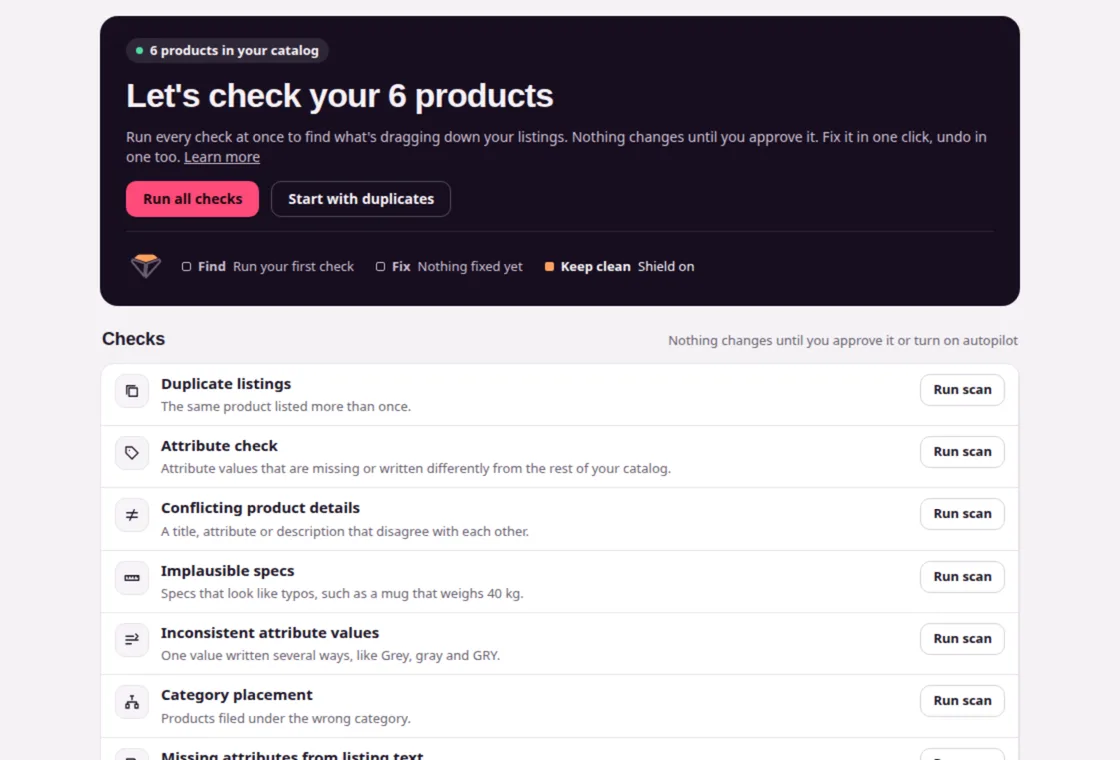
A demo store before its first checks. Your product count will reflect your store.
What's included on Shopify
Included
- All 18 checks, each finding with its evidence
- One-click fixes and duplicate merges
- A restore point saved before every change
- Shield on-save checks and scheduled rescans
- Competitor tracking
What it costs
Every Pristine feature on Shopify is free during the open beta.