Import your Squarespace products
Connect Squarespace
Sign in to the Pristine web app, authorize read-only access to your Squarespace products and import them, ready for your first checks.
Connect your Squarespace site
Sign in to Pristine
Go to my.pristinecommerce.shop and choose Continue with Google. Your account is created the first time you sign in.
Choose Connect → Squarespace
From your account, choose Connect, then Connect Squarespace. Choose which account the catalog belongs to.
Authorize product access
Choose Continue to Squarespace and approve read-only product access for your site. Squarespace may show a notice for the unreviewed extension during the beta.
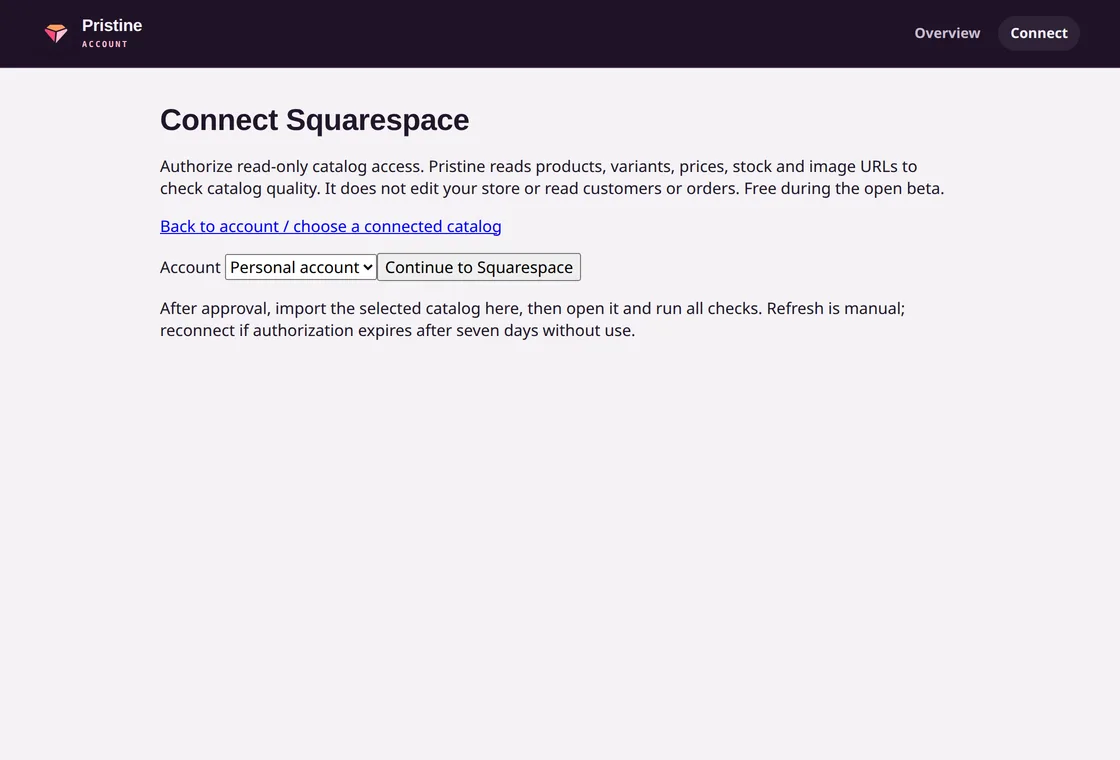
Pristine reads products, variants, prices, stock and image links. It can't edit your store or read customers or orders.
Import your catalog
Back in Pristine, your Squarespace catalog is selected. Choose Import / refresh catalog and wait for the status to say ready. Refresh is manual: import again when you want to check updated products. If authorization expires after seven days without use, reconnect.
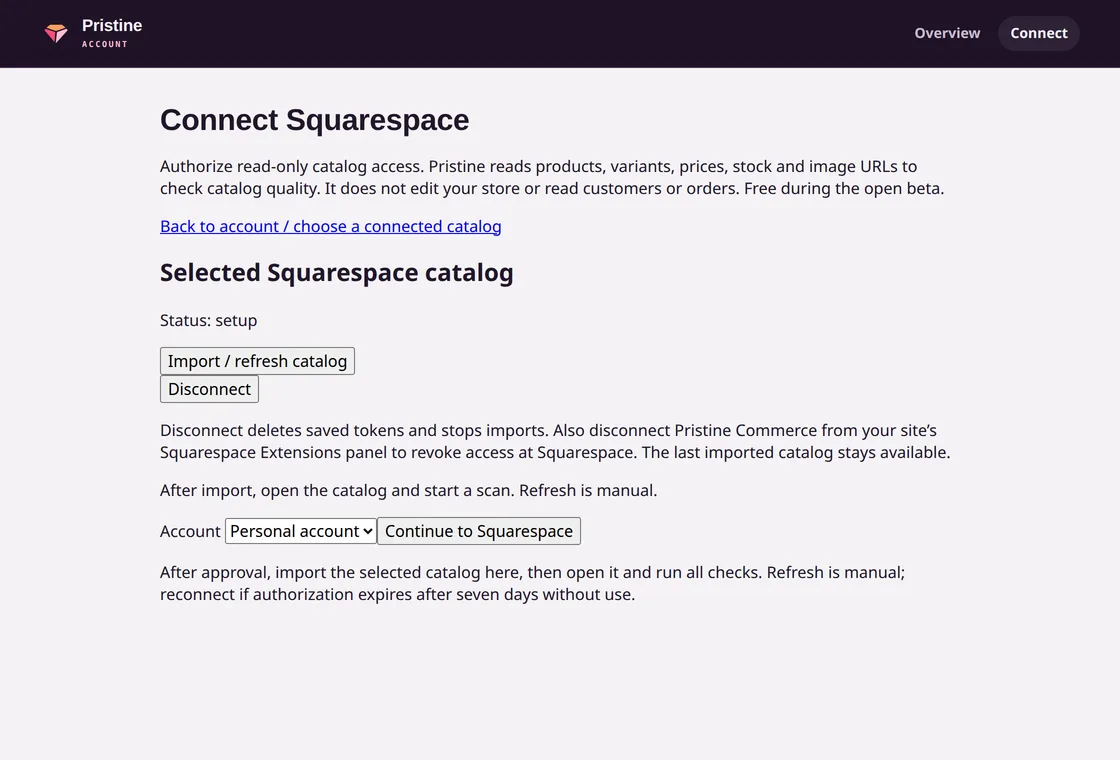
Disconnect stops imports and removes the saved connection. To revoke access in Squarespace too, remove Pristine Commerce from its Extensions panel.
You're on Catalog quality
Once the import is ready, your Squarespace catalog appears in your account. Open the catalog to reach Catalog quality. Choose Run all checks to start the checks that are ready, or Run scan beside a single check. Getting started explains what happens next.
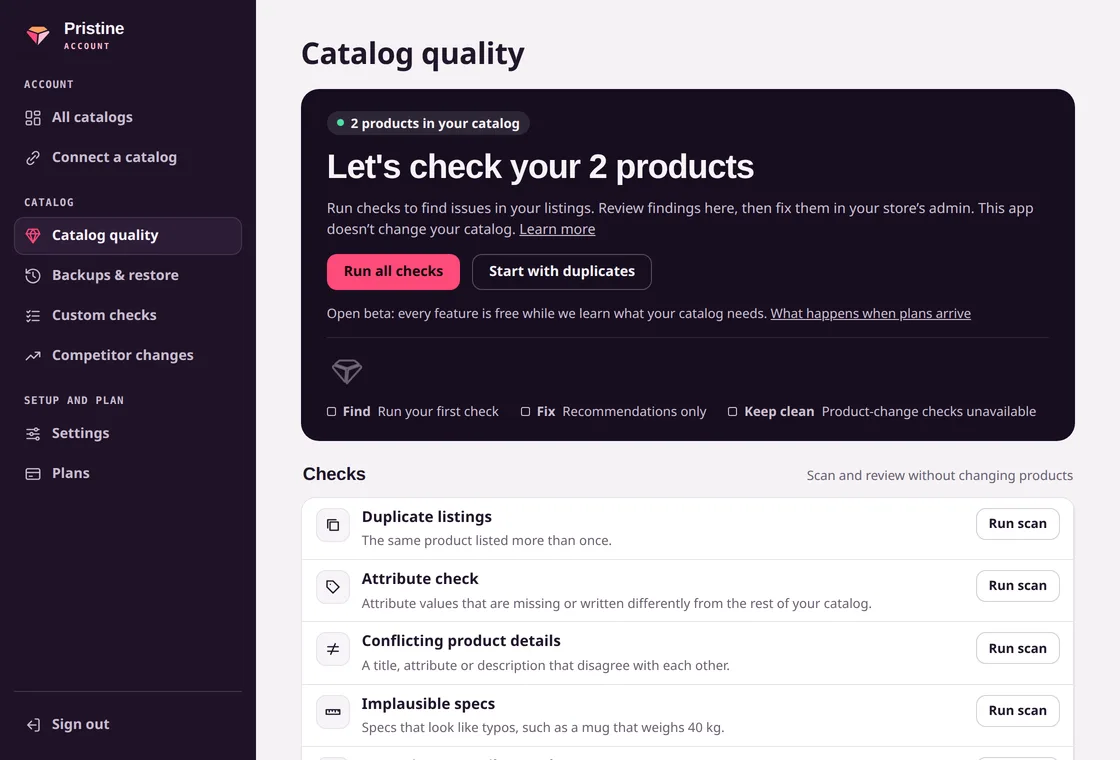
A demo catalog with two products. The left menu has Backups & restore, Custom checks, Settings and Plans for this catalog.
Prefer a CSV?
Go to Products & Services > Products > Export all. This covers physical and service products, up to 10,000 products, and omits download products and variant images. Pristine's smaller upload limit still applies.
Upload the file as described in the CSV upload guide.
What's included on Squarespace
Included
- Catalog checks with evidence for every finding
- Custom checks written in plain English
- Read-only product import and refresh from your store
Not available yet
- Fixes written back to your store
- Duplicate merges
- Shield on-save checks
What it costs
Pristine is free during the open beta, within your catalog's usage credits. There's nothing to pay and no paid upgrade while the beta runs. We'll tell you before paid plans start; your findings and history stay.