Connect WooCommerce with the plugin
WooCommerce plugin
The Pristine Catalog QA plugin connects your WooCommerce store read-only, so you import products instead of exporting a CSV. It isn't available yet.
WordPress.org release pending
What you'll need
A WordPress site with WooCommerce active, on a public HTTPS address. Pristine reads your products over that address, so a local or password-protected staging site can't connect.
A WordPress user who can manage WooCommerce, and a Pristine account. Go to my.pristinecommerce.shop and choose Continue with Google; your account is created the first time you sign in.
Connect your store
Install the plugin
In your WordPress admin, go to Plugins > Add New Plugin, search for Pristine Catalog QA, then install and activate it.
Open WooCommerce > Pristine
The plugin adds a Pristine page under WooCommerce. Choose Connect to Pristine. Only your site's address is sent when you do.
Sign in and confirm your store
Sign in to Pristine and check the store address before you continue to WooCommerce.
Approve read-only access
WooCommerce asks you to approve read access for Pristine. Approve it to create the connection; WooCommerce sends Pristine a read-only key.
Import your catalog
Back in Pristine, choose the new WooCommerce catalog and import it. Then open Catalog quality and choose Run all checks.
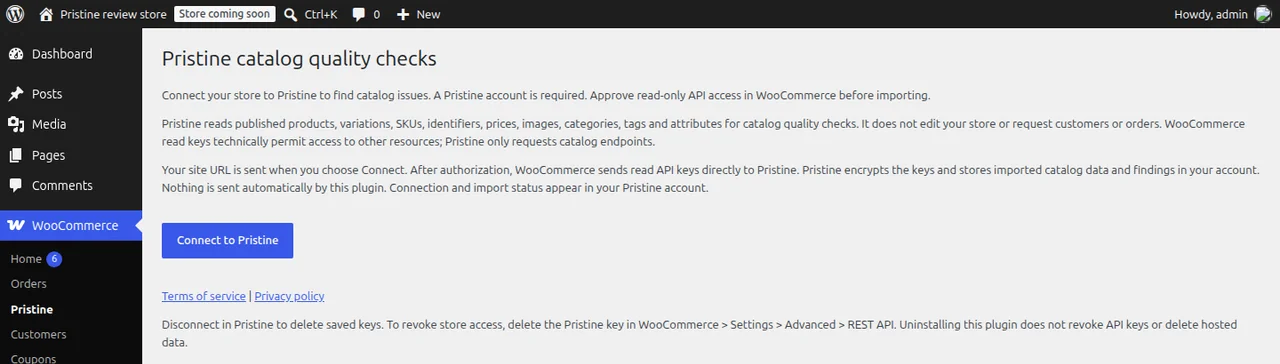
The plugin on a demo store. Connection and import status appear in your Pristine account, not in WordPress.
What Pristine reads
Published products and their variations: names, descriptions, SKUs and identifiers, prices, image URLs, categories, tags and attributes. Pristine doesn't request customers or orders, and the plugin sends nothing on its own; imports and refreshes happen when you choose them.
WooCommerce's read permission covers more than products. Pristine only asks for the product and variation lists, and keeps its key encrypted.
Disconnect or uninstall
Disconnect in Pristine to delete the saved key; the last imported catalog stays in your account. To revoke access at the store too, delete Pristine's key in WooCommerce > Settings > Advanced > REST API.
Uninstalling the plugin removes its settings from WordPress. It doesn't revoke the key or delete your Pristine account's data.