Install Pristine from the Wix App Market
Get started on Wix
Install Pristine Commerce, open it in your Wix dashboard and run a full scan of your products. You can also upload a CSV export.
Install and open Pristine in Wix
Open Pristine Commerce
After installation, open Pristine Commerce from the Wix dashboard as the site owner. There's no separate Pristine sign-in.
Bring in your products
Choose Refresh catalog, or go straight to Run full scan: your first scan imports your visible Wix Stores products directly. Hidden products and drafts aren't included.
Run a full scan
Choose Run full scan. Recent checks shows each check as it finishes, and Findings lists what needs attention.
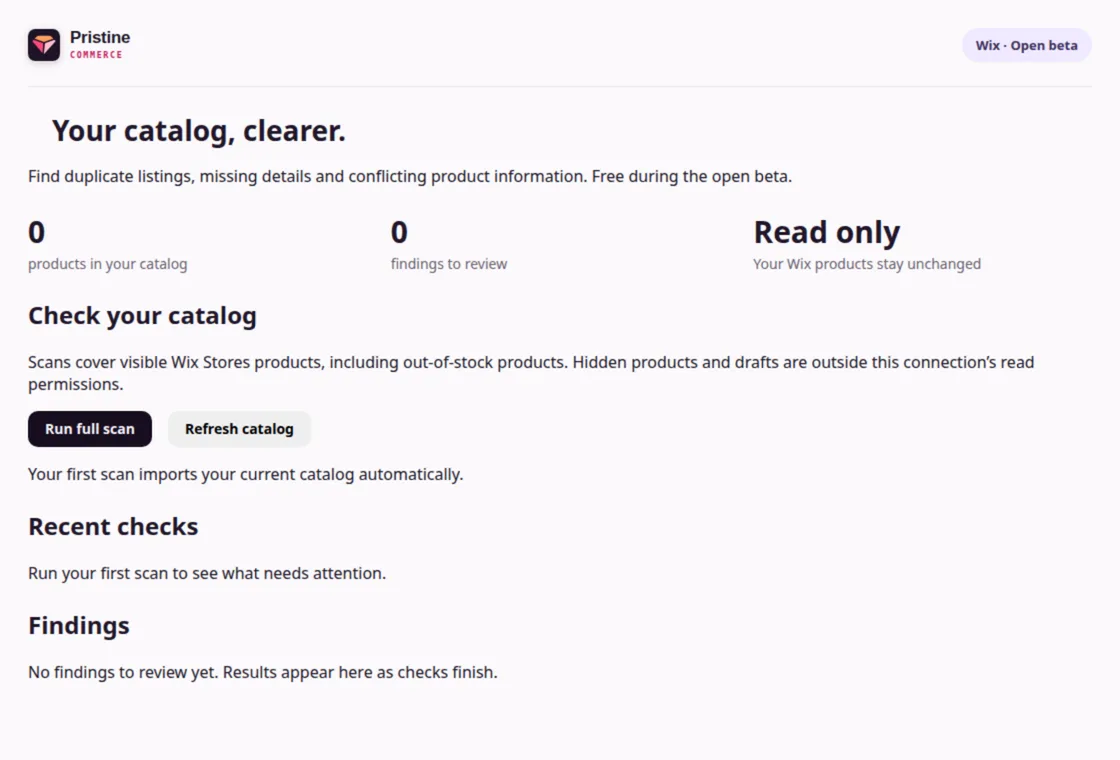
A demo site before its first scan. The Wix dashboard is simpler than Catalog quality in the other apps: it runs every check at once and lists the findings below.
Upload a CSV instead
Go to Products > More Actions > Export. Wix exports physical products only, with up to 5,000 rows per file; variants count toward that limit. Pristine's smaller upload limit still applies.
Then upload the file to your Pristine account. The CSV upload guide walks through it.
What's included on Wix
Included
- Catalog checks with evidence for every finding
- Read-only product import and refresh from your store
Not available yet
- Fixes written back to your store
- Duplicate merges
- Shield on-save checks
- Creating custom checks inside Wix
What it costs
Pristine is free during the open beta, within your catalog's usage credits. There's nothing to pay and no paid upgrade while the beta runs. We'll tell you before paid plans start; your findings and history stay.